
A large telecom operator unified dozens of disparate data sources into a single system on Megaladata. Information processing time dropped from several days to hours: a 3-5 times speedup. More than 300...
Megaladata 7.4.1 Release Notes

This new Megaladata release expands the platform's integration and UI capabilities and enhances information security. Megaladata Integrator now includes an MCP server. New authentication and autorization features include SASL (GSSAPI/Kerberos) support for LDAP and Active Directory Federation Services as an OpenID authentication provider. Operation stability increased with the new restore user sessions option. In the Scheduler, you can now use variables obtained from access tokens during OpenID authentication. Improvements to the Cube visualizer include new options for chart display and common headers in cross tables. We also fixed bugs in Megaladata Studio, Job Scheduler, JSON to Tree, Replace, Node Execution, Python, Binning, some import and export components, and some connections. Fixed issues that affected UI interaction. Improved application stability under high load and low-memory conditions.
Megaladata Integrator
Implemented a MCP server to the Megaladata Integrator: available in the Enterprise edition.
Model Context Protocol (MCP) enables AI agents to call external tools. Megaladata Integrator now supports MCP, acting as a MCP server and providing workflows you published as web services as a tool kit.
The system generates MCP tools from published nodes in published packages. A common MCP server for all packages is available at http://<Server>/<App>/mcp/. To access the MCP server for a specific package, use the following URL: http://<Server>/<App>/mcp/<PackageName>/.
This way, the data processing and transformation models from MGD workflows can now be used not only as traditional web services, but also as MCP tools, which an AI agent can choose and call independently for solving its tasks.
MCP employs the existing Megaladata functionality of publishing web services. To publish a MCP tool, select Publish the MCP server in the Add web service dialog when publishing the package.
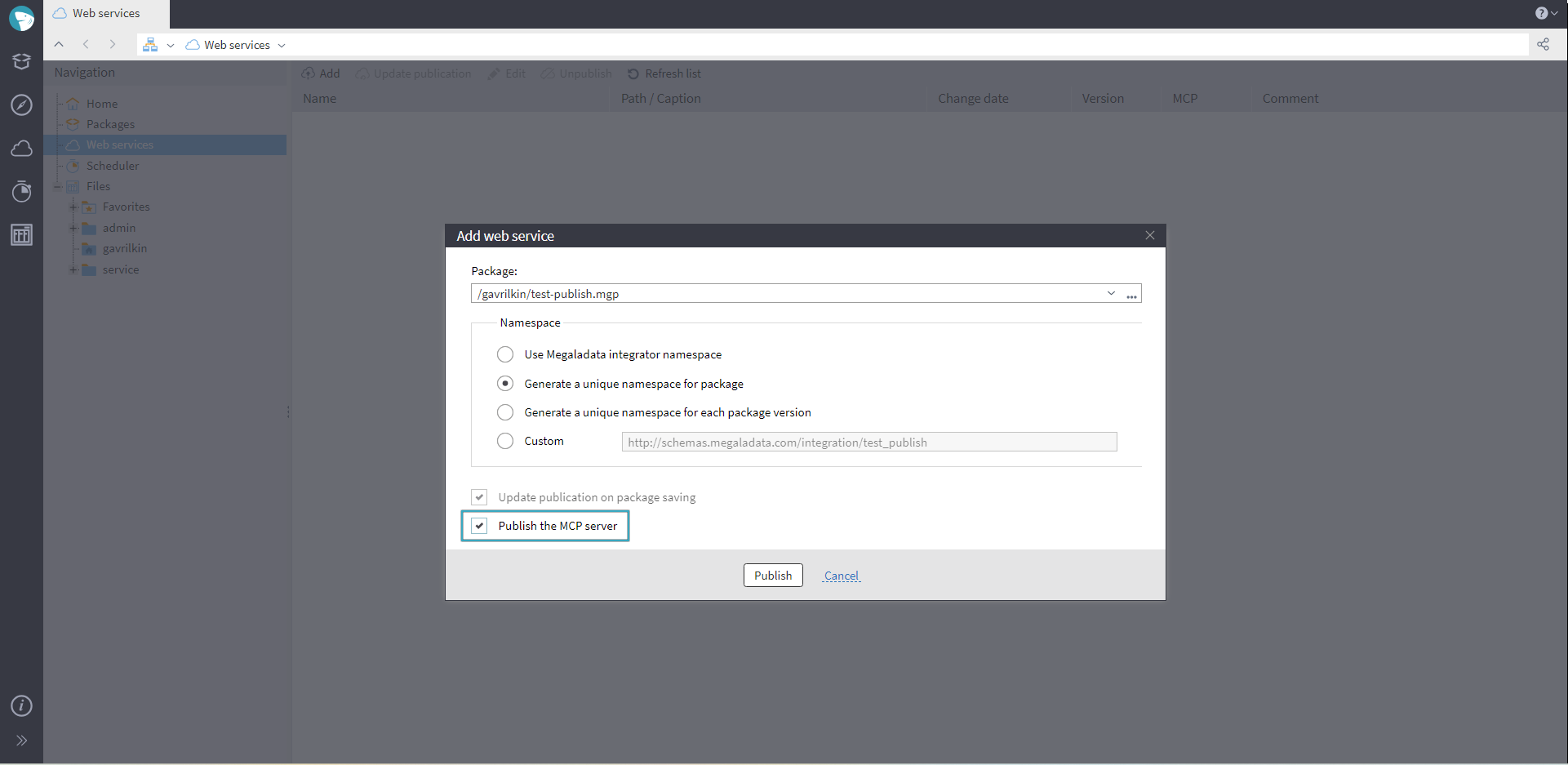
How to add a web service
Operation specifics and limitations:
- The standard allows for various data transfer methods: Streamable HTTP, STDIO, or SSE. The current Megaladata Integrator implementation uses Streamable HTTP via URL to interact with the MCP client.
- The MCP server operates in a stateless mode: It does not retain the session state between requests, processing each request independently.
- The current implementation does not support sending notifications about changing the list of published tools (
notifications/tools/list_changed) to MCP clients. After such changes (e.g., adding, removing, or renaming) the MCP client may need to request the updated tool list again usingtools/list.
Further reading:
- Model Context Protocol for AI,
- MCP Server in Megaladata: From AI's "Smart" Answers to Real Business Solutions
Megaladata Server
Increased stability through session restore after losing connection to Megaladata Server.
Upon connection loss, the Megaladata Studio web interface now displays a window suggesting the user to either reconnect or close the session. When reconnected succesfully, the user will be able to resume their work as though there was no connection loss.
Important: Session restore will not work if the session was closed by the administrator from the Session Manager or the server stopped working.
In case the listening ports are busy when starting Megaladata Server, an Error binding with <host>:<port> (<error>) message will be written to the log (where <host> and <port> are the URL and port of the requested interface, and <error> is the error message body). If the error occurred when creating a Unix socket, the logged message will be: Error creating UNIX socket (<socket_name>): <synapse_error> (where <socket_name> is the file/socket name specified in the configuration file, and <synapse_error> is the error message body provided by the Ararat Synapse library).
On Linux, we increased the process file descriptor limit to the maximum. This helps mitigate issues with preserving or restoring Megaladata operation when an Out Of Memory error occurs.
Improved stability and handling of critical low-memory scenarios. This reduces the likelihood of Megaladata Server crashes under high load and low-memory conditions.
User authentication with OpenID
You can use Active Directory Federation Services (ADFS) as a OpenID user authenitication provider. To enable this, set the Retrieve username from token option to true in OpenID parameters, as this provider passes the username as a token claim and does not support retreiving it from the user info.
If no Username claim property is set in user unfo, or there is no claim in the token, you will receive an error message:
- When testing OpenID settings: The token does not contain the preferred_username claim or User info does not contain the preferred_username property.
- When logging in: Failed to retrieve username. (Before, the message was "The token does not contain a username.")
LDAP authentication
The new Megaladata 7.4 release enjoys extended LDAP authentication capabilities. The platform now supports SASL GSSAPI (Kerberos V5), which allows a Megaladata service running under the domain account to authenticate to the LDAP server via the Kerberos protocol, without transmitting the username and password. This eliminates the need to enter and save usernames and passwords in the Megaladata config files, which enhances the system's security.
Configure this new mode in the Service account: authentication LDAP parameter, selecting from:
- Simple
- SASL DIGEST-MD5
- SASL GSSAPI
Configure authentication for the sevice account and user accounts independently.
In LDAP parameters, you can now include a list of base domains. To do so, enter the necessary domain names in the Base domain name field, separating them with a semicolon ( ; ). The system will search for each listed BaseDN sequentially, following the list order.
If a request encounters an error (for example, an incorrect base domain name), the search stops, and the system returns an error.
If the user was not found, the request does not return errors, but rather, continues for the next name in the list. When the system finds the user, it stops searching and returns the user's full domain name. The authentication process (password check) starts for this user. Thus, in case of a domain name conflict, the system gives priority to the user domain listed earlier. The other conflicting user will not gain access, as the system will not proceed to searching for the next name.
Note: Sometimes, the system cannot search for a shared domain name as a domain with this name oes not exist. This will result in an error:
0000202B: RefErr: DSID-03100844, data 0, 1 access points ref 1: 'example.com'. If this happens, use the global directory, replacing port389with3268in the AD configuration.
We also made the user message when testing LDAP authentication more informative: it now includes a text explanation of the result code.
Information security upgrade
In Megaladata Enterprise, you can now restrict Megaladata Studio's About and Home pages from requesting version info and news from megaladata.com. To do so, set {"disablenewsfetch": true} in the client.json config file.
We also added encryption when saving to the configuration file for the account password in LDAP parameters and for the client key in OpenID parameters.
New administration parameters
The new session restore options required adding new administration parameters:
- Added a new option, Session lifetime after disconnect, to connection parameters. Use it to set a session timeout after a detected connection loss. (If not detected, the session will just 'hang'.) When the session closes after the specified timeout (up to
12hours), the server does not store it any longer, and reconnect is impossible. Setting the timeout to0means sessions will not be stored after a connection loss. - Added the following security settings:
- Reconnect only with current IP: The user will not be able to connect with a a new IP. By default, this setting is disabled. If you enable it, note that you will not be able to restore a session with a changed provider or connection technology (e.g., switching from Wi-Fi to 4G).
- Request authentication on reconnect: Set this to enforce repeated authentication when the user attempts to reconnect. Default: disabled.
Added an option Retrieve username from token to the OpenID parameters. Set this to true whenever you use Active Directory Federation Services as the OpenID authentication provider.
Another new parameter is Update full username. Set it to true to retrieve a full username from access token upon each connection and add it to the user description, similarly to updating user roles and permissions. When set to false, the system will retrieve the full username from the access token only upon the first connection with OpenID authentication. This username will remain unchanged.
Renamed the Account setting in LDAP parameters to Service account: username/DN; renamed the Password setting into Service account: password.
Added a new parameter Service account: authentication for setting up SASL GSSAPI (Kerberos V5). This parameter defines the authentication method for the service account (used for searching users in the directory service) on the LDAP server. The available option are:
- Simple: The system uses the user's distinguished name (DN) and password in an open format.
- SASL DIGEST-MD5: The system uses the SASL mechnism with DIGEST-MD5 encryption.
- SASL GSSAPI: The service account connects without username and password.
Implemented a search option to the Parameters page in form of a toolbar button.
Job scheduler
In Job Scheduler, you can now use variables retrieved from the access token during OpenID authentication in the application. View these variables in the Variables tab when editing jobs. Available only for users authenticated with OpenID. You can find the list of variables in a separate modal window: Variables from openID token.
You can also update these variables based on your current OpenID settings (the specified list of variables) and values from the current token (current session).
Updates to visualizers
In the Cube visualizer, you can now place Charts from the same side of a cross table, one above the other, thanks to the newly added tools:
- Highlighted drop areas
- The Pivot option in the position change submenu of the chart's context menu
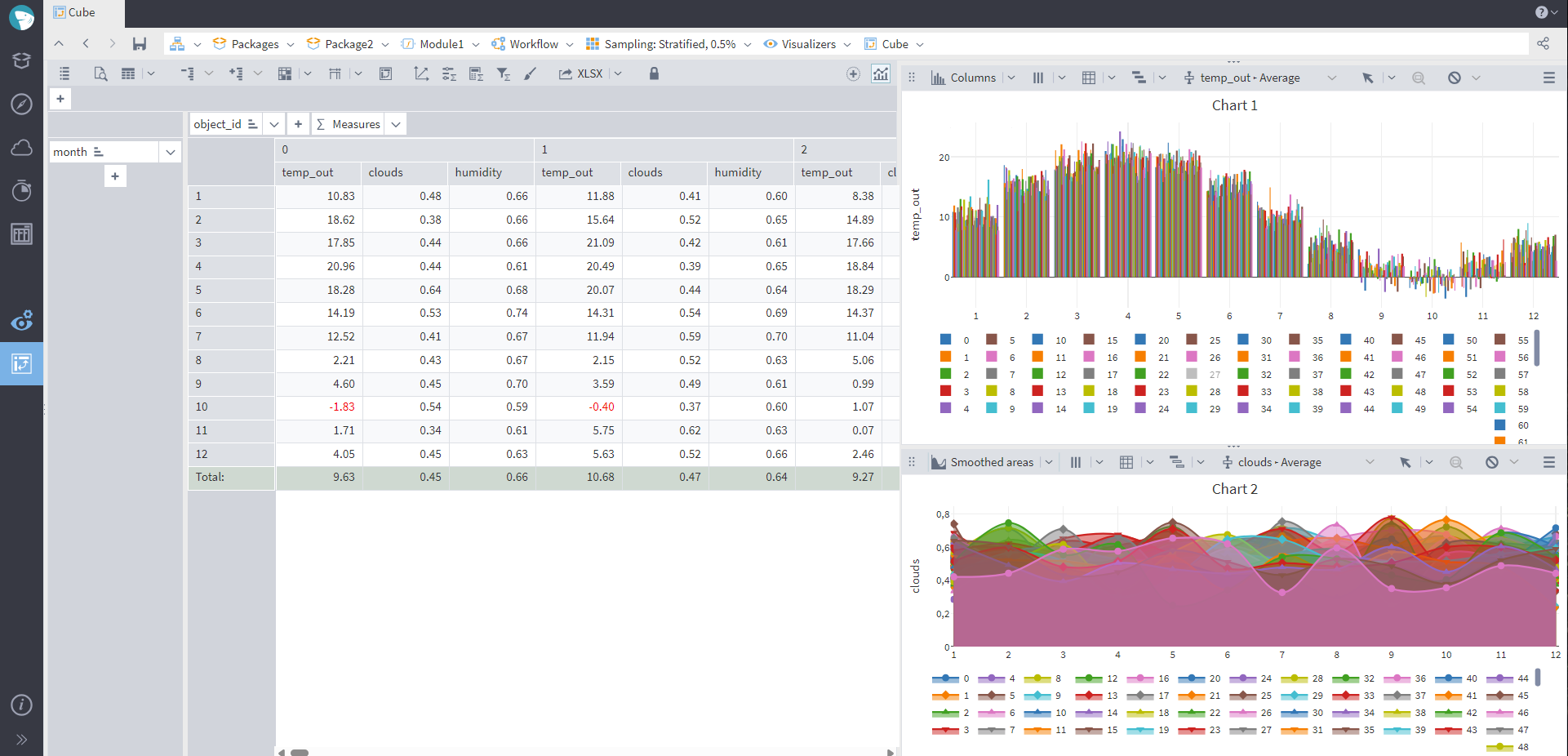
Charts in the Cube visualizer
We added the following views for the Cube's numeric measure aggregations:
| View | Similar operation in Excel | Description |
|---|---|---|
| Percentage of parent row | % of Parent Col Total | The ratio of the value to the value of its immediate parent header in the columns. Cells in the leftmost column have no parent headers; for these, 100% is returned, as in Excel. If the parent total is zero or missing, the value will be omitted. |
| Percentage of parent column | % of Parent Row Total | The ratio of the value to the value of the immediate parent header in the rows. The cells in the bottom-most row have no parent headers; for these, 100% is returned, as in Excel. If the parent total is zero or missing, the value will be omitted. |
| Percentage of grand total | % of Grand Total | The ratio of the value to the grand total of the entire cross-tabulation (the bottom-left cell). If the parent total is zero or missing, the value will be omitted. |
Implemented a common header display mode in the Cube's cross tables, including during export into a file. A common header is a header with a rowspan/colspan in the table is more than one cell. The system converts such headers into 1x1 headers:
- Headers of aggregations and measures are made the same.
- Expanded headers of dimensions are made identical, with only the first one featuring the Expand/Collapse button, the caption, and the applied sort hint.
- Collapsed headers are represented in the following format: One original header and a Total header for each lower level.
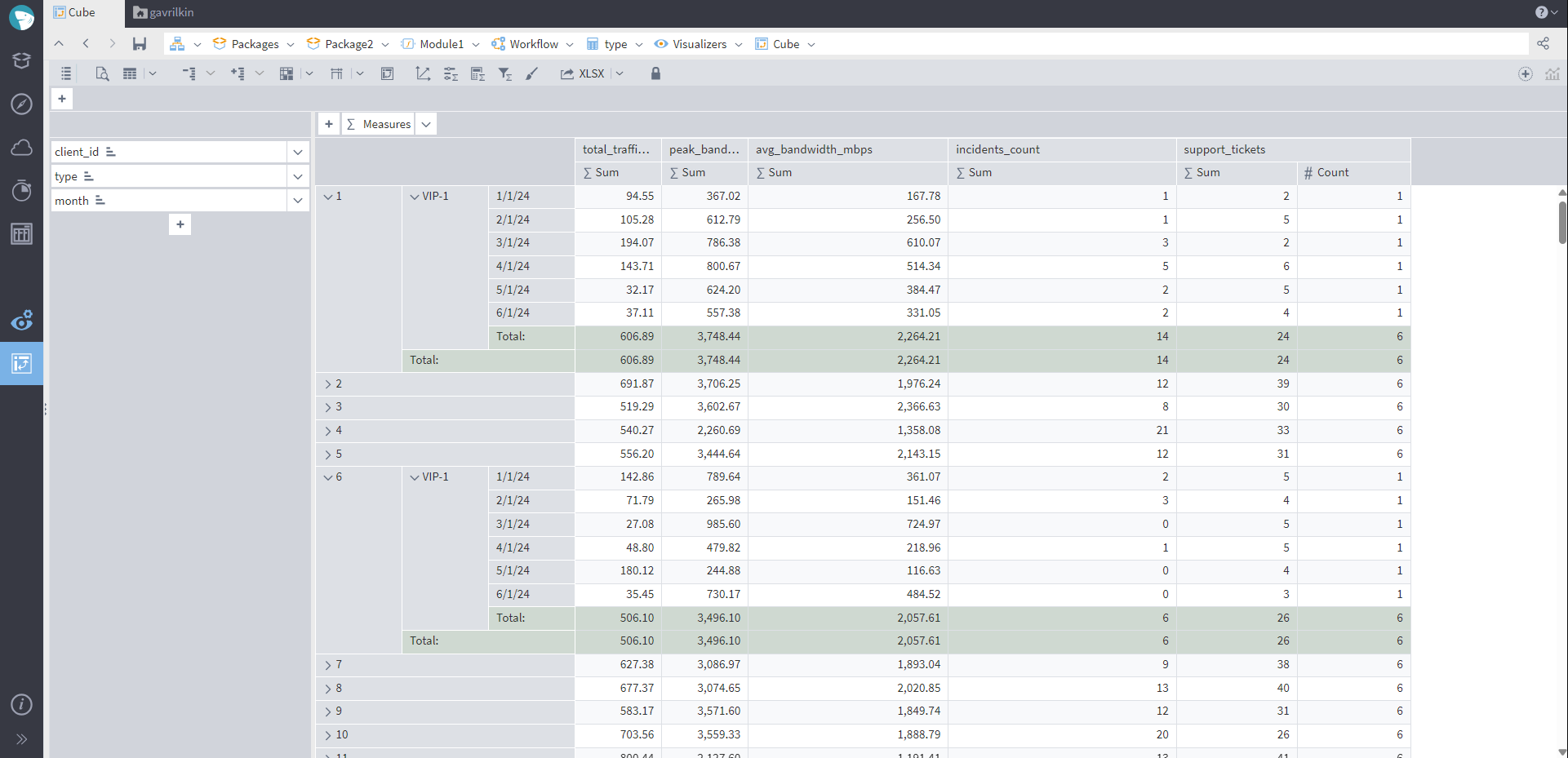
"Total" headers in the Cube visualizer
In the Table visualizer, you can now create a Row filter node based on a set filter:
- Use the Create "Row Filter" node button in the filter configuration window. Note that it is only available viа the visualizer is active and has at least one filter added.
- In the window that opens, configure the new Row filter node. You can then go directly to this new node.
In the Table visualizer, we added a new template, HH:NN:SS.ZZZ, for the date/time fields in the format configuration window. (Previously, this format was supported, but not shown in the templates.)
The Cube, Table, and Data Quality visualizers now support export to .xlsx.
Added the option to update table cells after calculating the median and unique values in the Statistics visualizer. Added MinLength, MaxLength, and MeanLength display for string values.
The Quick view now displays a Description column for variables.
Updates to standard components
JavaScript and Python
In the JavaScript and Python components, renamed the Wait timeout (ms) setting to a more specific Start wait timeout (ms).
The Python node's setup wizard now hides the Start wait timeout (ms) field if you enable the Start in separate process option.
Replace component
Added details about the original issue to the regex error message. For example, the message now may read: Invalid regular expression specified. Regular expression compile error at offset 4: missing terminating ] for character class.
Calculator
Added an optional Milliseconds parameter to the Calculator functions EncodeTime and EncodeDateTime. The existing Seconds parameter is also optional now.
Neural Net
The Neural Net (Classification) and Neural Net (Regression) components now have the Standardization normalizer set as default for continuous fields. (Before, there was no default normalization for such fields.)
Condition
Changed the interface of the Configure list of conditions page in the Condition node setup wizard. The configuration on this page is now similar to the Row Filter node setup.
Export to Excel files
In the Excel File export wizard, you can now configure numeric formats for real values. When configuring real columns, select from two options:
- General: This option does not require any further setup.
- Number: If you select this, set the necessary count of decimal places and the Separate thousands property.
Previously, the system exported integers to Excel files in a general format. Now, they are exported as numeric.
In the preview of the Excel File export node's wizard, integer numbers are now displayed with zero decimal places and no thousand separator.
Export to databases and data storage
Fixed the syntax error at or near "." error that occurred when you exported to PostgreSQL in fast loader mode and the column name contained the . character. The issue appeared in version 7.3.0 after the system added the Use fast loader option (#12196).
Export to PostgreSQL did not work in the Delete records by key fields and Update existing records in a table modes for a key field that had the timestamptz type. This regression appeared in version 7.3.0. We fixed it (#12162).
We also fixed an error that caused a timestamptz value loss during export to a PostgreSQL database when the database time zone differed from the application time zone (#9319).
The Failed to fill table "TableName" error message included extra quotation marks. This way, it was not clear whether the extra quotation marks appeared only in the error message, or Megaladata actually wrapped the table name in quotation marks. Now fixed.
Added the option to set an export-to-database type using Control Variables. The control variable caption will be added to the autogenerated caption of the Database export node.
Optimized the export to the data storage process.
File storage updates
Added a virtual Favorites folder to the File Storage. Use it to quickly access frequently used files and folders. Favorite folders and files are available not only in the file manager, but also in file selection windows.
Previously, the system displayed folders in the Navigation tree on Linux in the order of creation. This was different from Windows, making the search less convenient. Now, the File Storage features the same user-friendly sorting order on any operation system:
- To sort the File Storage items by name, the system uses their original order, considering their current locale and placing upper-case letters before lower-case.
- The Navigation tree sorts folders by name ascending, considering their original order and current locale, and placing upper-case letters before lower-case.
- The File Storage page has initial ascending sort by name enabled by default.
UI and application behavior updates
Updating passwords
Added a Change password option to the app's Main Menu (available for users with local authentication included in Megaladata). A click on it opens a modal window where you can update your password. Mind the security settings:
- Password entry attempts limit
- Password entry timeout
- And others
The new password must also follow the password policy parameters configured by the administrator.
Exit options
Previously, if you had unsaved packages when attempting to exit Megaladata, the system returned a warning and asked for confirmation. This release follows a new logic. Megaladata will now suggest saving all unsaved packages, providing the following options:
- Save and exit
- Exit without saving
- Close
Note: If you opt for Save and exit, the system will open a file save dialog for each of your unsaved drafts. If you click Cancel in such a dialog, the draft will not be saved, and the application will close.
Node training
For nodes that require training, the wizard's last step now features a Train button instead of Run if the node has not been trained before.
Base and source nodes
You can now move from Navigation and Derivied components trees directly to base nodes (for derived nodes) and reference sources (for reference nodes and connections).
The Go to base node command is available for derived nodes, Loop, and Node Execution as a context menu command in the workflow's Navigation tree and Derived components pane. The Open the reference source command is available in the context menu of reference nodes and connections in the workflow's Navigation tree.
When using the Go to base node command:
- If the base node belongs to a public package, you will jump to it directly.
- If the base node is not found in public packages, the system will ask for opening the needed package.
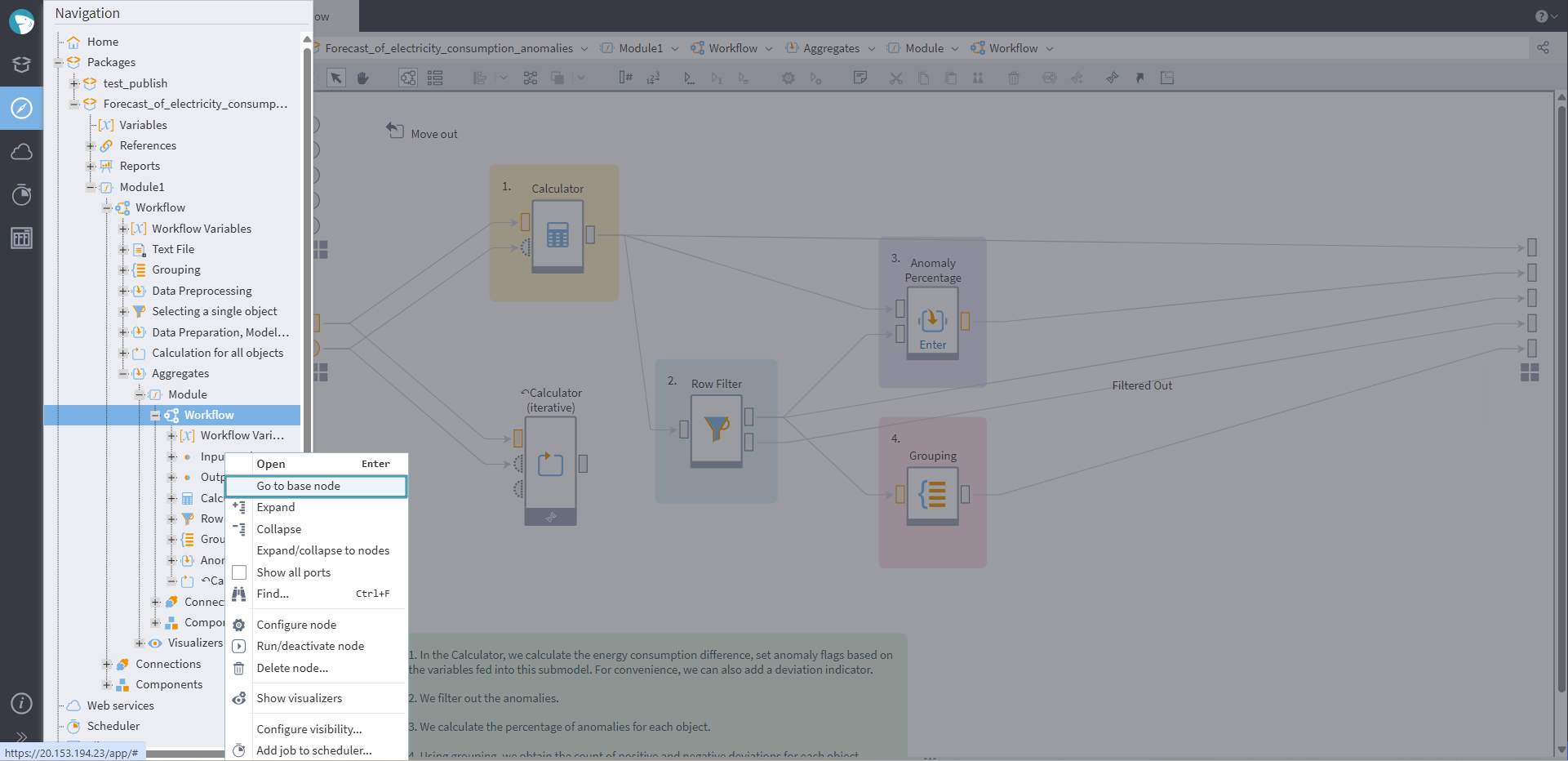
How to go to base node
Node placement in the workflow area
- The output nodes of supernodes have now fixed placement on the right of the workflow area. Previously, they sometimes moved randomly, overlapping other nodes.
- The system now secures a scrollable offset at the bottom and on the right of the workflow area, so that the nodes do not stick to the edges.
- When you move the nodes, the workflow area expands in line with the two abovementioned features.
- When selecting nodes, you cannot extend the selection frame otside the workflow area or change the workflow area size.
- Selecting and moving nodes now enjoys a more convenient autoscroll: It follows the mouse indications even when outside the workflow area.
Other updates
We also expanded the Annotations area: up to 7680 wide and 4320 tall.
When copying a large amount of data from Quick view to clipboard, the system now displays a progress indicator and provides a cancel option.
Logging
When starting Megaladata, the MGD Server log records the operation system details, for example: Megaladata Enterprise started {"VERSION": "7.4.0-alpha", "OS": "openSUSE Tumbleweed 20250827 kernel 6.16.3-1-default glibc 2.42"}.
Bug fixes
Quick view
User interface lagged if you used Ctrl + A ("select all") in Quick view for a large dataset (~1 million rows) and closed the Quick view window after applying the wildcard to the table. Bug fixed (#8637).
When you copied a large amount of data (about 65000 rows and 12 columns) from the Quick View visualizer, the application froze for several minutes. At the same time, you could copy the same amount of data from the Table visualizer in 100 milliseconds. We fixed it (#11803).
Optimized browser memory usage by the Quick View visualizer in inactive workflow tabs (#12154).
Megaladata Desktop
Previously, Megaladata Desktop crashed when you copied a large number of cells from a table in the Quick View and Table visualizers, in previews of some nodes, and in several other parts of the application. Now that we fixed it, memory usage dropped significantly, and performance became about 10 times higher (#12216).
Megaladata Server
Previously, if you created a package with a Reference Node, deleted the source node for that Reference node, and then connected this package as a reference into a package running in Job Scheduler , the job ended with an error when both packages were closed. If you then opened the package that Scheduler ran, closed the error message, and ran the job again in Scheduler, the job completed successfully. In other words, successfull execution of the package in batch processing mode depended on the shared packages list. We fixed this erroneous behavior (#12138).
Data Tree Mapping
Fixed the Cannot read properties of undefined (reading 'getProxy') error that occurred when you configured Data Tree nodes. This regression appeared in version 7.3.2 (#12128).
Python
Fixed the Python interpreter execution finished with error code 1 error. It occurred if two users ran Python in an isolated environment, and one user's name coincided with a part of another user's name (e.g., service.rpi and service) (#12256).
Binning
Fixed an incorrect context menu appearance in the Binning node wizard. The context menu of the template window (which opens when clicking Example) would appear only for the top table. This bug was fixed; now the context menu appears correctly for all tables of the template window.
Workflow area
When attempting to auto-align a long chain of nodes within a Supernode, nodes would sometimes overlap the supernode's output port icon. Now fixed (#3362).
If a supernode had many (more than 10) output ports, some of them would be displayed outside the workflow area. Fixed the incorrect display (#5213).
JSON to Tree
Previously, if a date/time value included microseconds (for example, PostgreSQL can return date/time values with microsecond precision), the JSON to Tree node assigned the string data type to such values during auto structure detection, which caused errors. We updated the algorithm; it now correctly handles date/time values with nanosecond precision (for example, ClickHouse can return this precision when you use the DateTime64 data type) (#12046).
Visualizers
When you configured data export from a Visualizer, the Cancel button did not work in the file selection window. Fixed the issue (#12301).
In the Cube visualizer, after exporting to an XLSX or HTML file, the UI would become unresponsive. You could not click the + buttons, drag fields already in the dimensions area, open the measures, etc. Now fixed (#12375).
Node Execution component
In the Node Execution component configuration wizard, the system displayed Run instead of Train if the parent node supported training and you did not select Save configuration of the selected node during setup. Fixed the issue (#12305).
Replace
Fixed the Access violation error that occurred when you activated the Replace node with Change replacement type enabled for a manually replaced value, and With regular expression selected for the Replace other parameter (#12324).
For the Replace other parameter, the replacement type list included the With regular expression option for all fields. We removed this option for data types that do not support regular expression replacement (all data types except string) (#4650).
Excel File (import)
Fixed a Megaladata Server crash that occurred during the import of multiple Excel files in parallel processing mode if, in at least one of the files except the first one, the system could not read the row count metadata (the dimension tag), or if the settings required excluding empty rows (#12343).
Excel File (export)
When exporting to Excel, the system wrote real values of +/- infinity as +Inf and -Inf. MS Excel could not parse this format as it does not support infinity. As a result, when you imported data from such a file into Megaladata, the application returned the Failed to open Excel file error. Now fixed (#12185).
XML File (export)
Made an error message in export to XML more informative. Now, when you export an empty dataset, it explicitly states the error cause: The input data source contains no records (#12126).
Workflow area
If you added a Supernode to the workflow area, opened it, and resized the workflow area (for example, by resizing the Components pane), the supernode output node did not move to the new right boundary, although adding a node or an annotation would fix the issue. We now fixed this behavior so that the workflow area resizes correctly even when it contains no elements (#12358).
If the system lost connection to Megaladata Server during node activation, and then restored it, the nodes activating at the time of the connection loss did not update their state. After reconnection, these nodes appeared deactivated, while their ports remained active. Their output ports contained no data. Fixed the issue (#12201).
Job scheduler
If a user with OpenID authentication added a job in the Job Scheduler, the system would assign incorrect values to all variables upon running that job, taking them from the token instead of using the saved variable values. Fixed the issue (#12310).
When you clicked the arrow to open the drop-down list field in Scheduler, on the Triggers tab, or in Finish job status for starting a job. The browser console displayed an error http://user@localhost/bg.ext.TagListModel?_dc=1769094996754&query=&page=1&start=0&limit=25 404 (Not Found). Now fixed.
ClickHouse connection
When you imported ClickHouse DateTime64 values, the system lost precision while converting from UNIX format to TDateTime. As a result, date conversion in other components could produce unexpected results. For example, in the Date and Time node (Year + Month, Start date), you could get 31.12.2025 instead of 01.01.2026. This issue occurred on Linux in the GMT+7 time zone. Fixed (#12330).
Kafka connection
When configuring the Kafka connection, you could enter the SSL private key password, but the system did not apply it. We fixed the issue (#12174).
On Windows, we updated the librdkafka.dll library to version 2.14.1. This fixed the Local: Broker transport failure error that occurred when you connected to Kafka version 4.1.1 (#12311).
REST service connection
In the REST service connection, the wizard did not save the certificate selected from storage after you saved changes and closed the wizard. When you activated the connection, the system returned the following error: Error executing HTTP request. TCP/IP Socket error 10091: error:14094410:SSL routines:ssl3_read_bytes:sslv3 alert handshake failure. Fixed the issue (#10165).
The REST service connection with a URL like https://exc.com/api/v2.0/Dataset(:value1) terminated with a 404 error. The issue was caused by percent-encoding. We updated the URL parameter encoding logic and removed percent-encoding for some characters (#12106).
Previously, the system parsed a URL that contained two question marks incorrectly (for example, http://exc.com?par=?&var=1). This resulted in recognized the host name as exc.com?par=, and not being able to establish the connection. On Linux, the system returned the following error: DNA processing errors: A label or domain name contains disallowed characters. We fixed it (#12254).
Supernode
Fixed the incorrect deactivation of the entire supernode when configuring end-of-activation deactivation for a group of nodes connected to its input node. The system still activated the following nodes connected to the deactivated group through execution order links. Because of this behavior, the same workflow could run successfully in interactive mode but end with an error during batch processing, including in Scheduler (#12165).
Fixed the Access violation error that occurred when you ran packages in the Job Scheduler with Deactivate node groups on completion enabled. The error occurred while the system deactivated node groups after they completed fully, if the package contained reference nodes to nodes in other packages. This issue occurred on Linux (#12326).
Application
In some cases, a context menu opened in a modal dialog remained visible after you closed the dialog. Clicking a menu item that stayed on screen could lead to errors. Fixed this behavior: The system now hides the context menu after you close the modal dialog (#7367).
In the Navigation pane context menu, the system displayed an incorrect action name for Run/deactivate node (#11512).
In application windows that contain table editors (for example, the filter settings window in the Table visualizer), after moving the window with the open value selection editor in a table, you could not open this editor again. We fixed it (#11583).
A new user with OpenID authentication could sometimes remain blocked on their first login to Megaladata Studio. In these cases, the system enabled the "Block account" option in the account parameters for this user. As a result, the application returned the following error: Connection in "Interactive" mode not allowed. We fixed it. Now, the system unblocks an added OpenID user on the first connection and after their permissions update (#12124).
On the Homepage, news titles displayed as a single line, so part of the text did not fit. Version 7.3.3 introduced this regression. Fixed the issue (#12300).
Fixed the Cannot read properties of undefined (...) error that occurred if you opened a package as a user with the View reports role (#12322).
After a temporary popup notification appeared in Megaladata Studio (for example, after copying data in Quick View), memory required for the operation in progress before the notification did not get freed immediately. Fixed the issue (#12327).
Fixed the Cannot read properties of null (reading 'add') error that occurred if you tried to go to the workflow area through the address bar while the node wizard ran a long operation and was covered with a special screen while (#12336).
When you opened a context menu in a navigation tree or any table in the UI by using the context menu key on the keyboard, the menu appeared on the screen but did not receive focus, making navigation through context menu items unavailable from the keyboard. Fixed this behavior (#12341).
Fixed issues that affected using the application in Firefox:
- The system did not convert a string to date/time if you specified milliseconds (for example, when you pasted variables together with values from the clipboard).
- In the Row Filter node and the Cube visualizer, the system did not paste a value list from the clipboard when you clicked Paste.
Publishing a node/package
On the Web Services page, the system displayed time in the Change date column in UTC without considering the time zone. This made it harder to track publication changes and associate them with package changes shown in File Storage, which uses the Megaladata Server time zone. Updated the behavior: The system now displays time in the Megaladata Server time zone (#12313).
File Storage
The system did not show the "read-only" checkbox in File storage. We fixed the issue. Keep in mind that on Windows, you can set the "read-only" attribute for folders, but the OS does not apply any visible limitations to working with files in such folders. The only thing this checkbox prevents is deleting the folder by using the rmdir command (#12160).
Upon saving a file, the system did not display an error message if another application had locked the file with the same name. The same issue occurred when you exported data to a file from a visualizer. You could see this behavior when you used the File System Access API to save files. Chrome (and Chromium-based browsers) can use File System Access API when you connect to Megaladata Server via HTTPS. We fixed it; now the system shows an error message in these situations (#12055).
When you deleted a file or folder from File Storage, the deleted item remained in Favorites. This issue occurred when the Favorites node in the navigation tree stayed collapsed. Fixed this behavior (#12345).
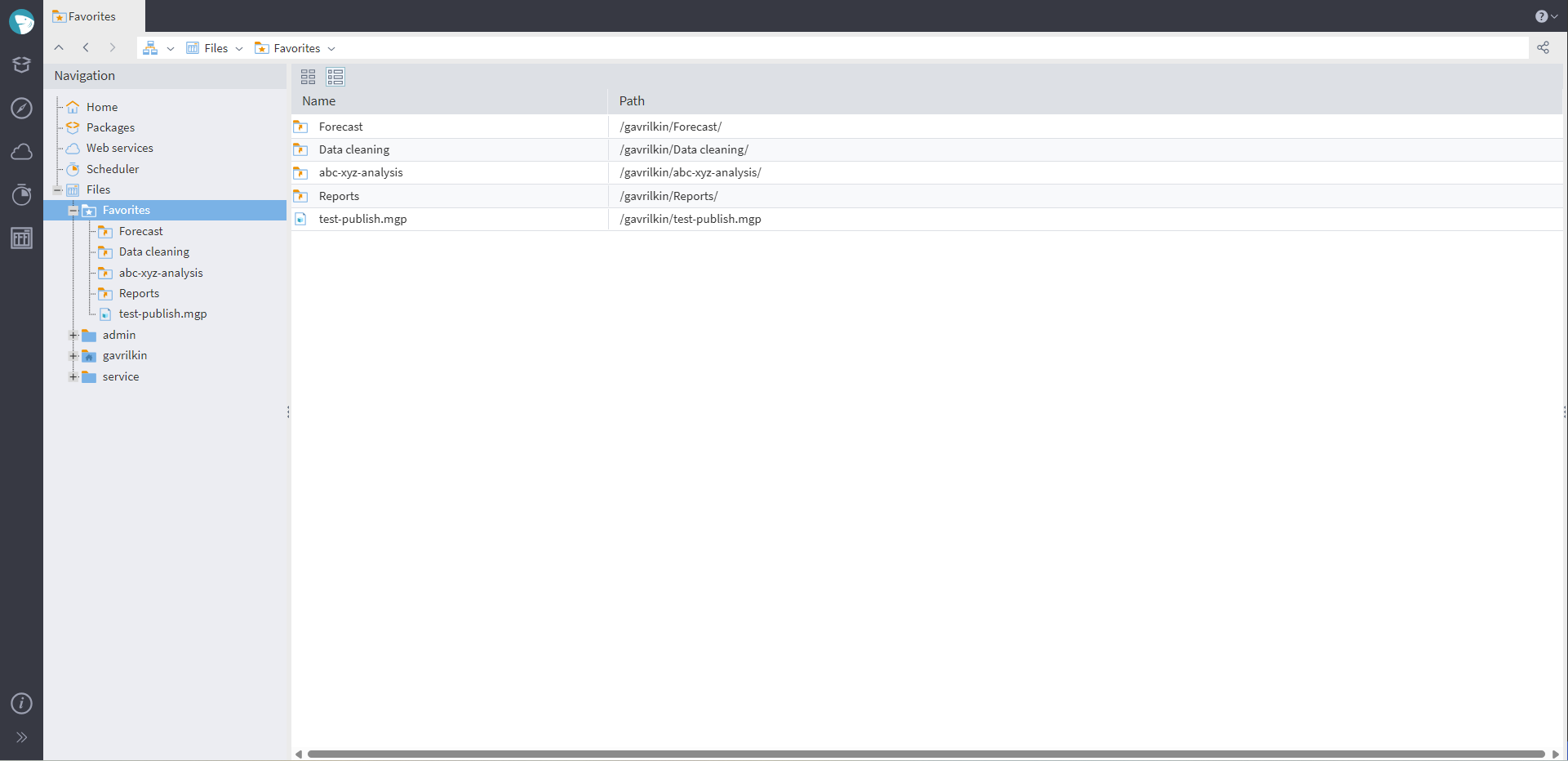
The favorites folder
See also

Megaladata as an Automation Tool: Case Study
How an E-commerce Retailer Reformed Replenishment in Three Months: Case Study
Replenishment planning for a large retailer means constant change: new seasons, new vendors, new regions. Every update used to mean a ticket and a wait. Here is what happened when they added Megaladata....

Semantic Layer
Large volumes of complex information force analysts to focus more on data management tasks than on data analysis. A specialized mechanism named "semantic layer" solves this problem. It provides a business...
About Megaladata
Megaladata is a low code platform for advanced analytics
A solution for a wide range of business problems that require processing large volumes of data, implementing complex logic, and applying machine learning methods.
GET STARTED!
It's free